> For the complete documentation index, see [llms.txt](https://help.calcumate.co/llms.txt). Markdown versions of documentation pages are available by appending `.md` to page URLs; this page is available as [Markdown](https://help.calcumate.co/calculator-setup-and-customization/step-7-publish-to-your-website.md).
# Step 7 - Publish to your website
##
You have now created your calculator and ready to implement your code onto your web page.
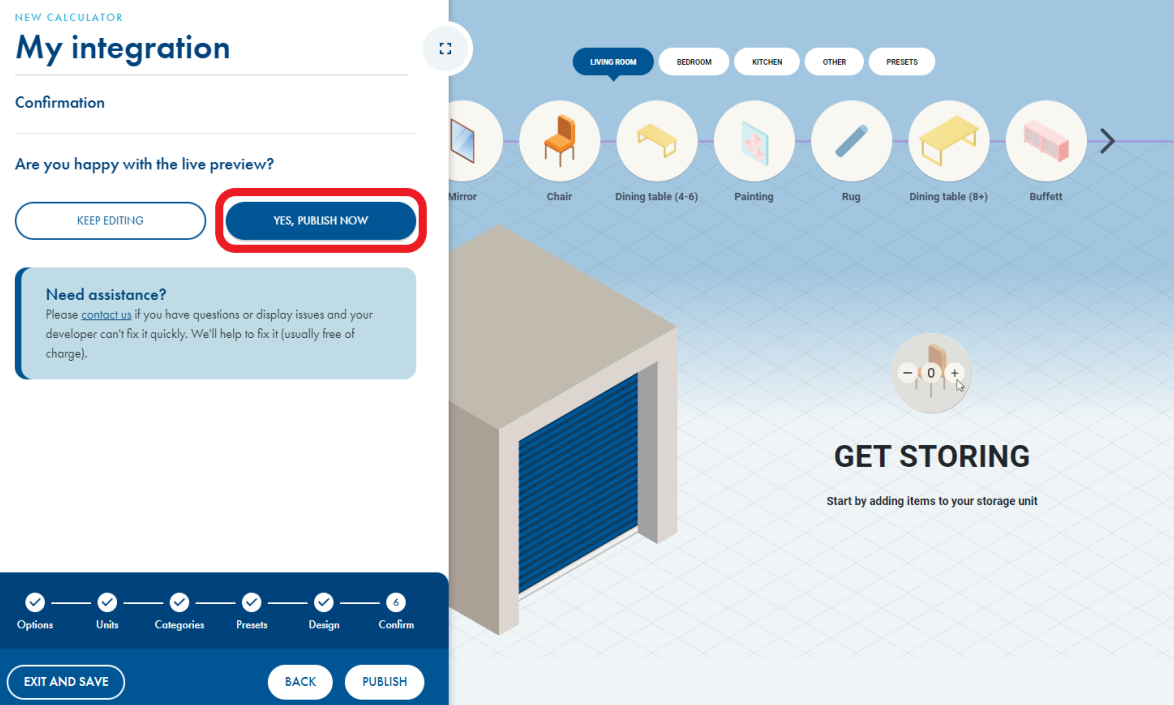
1. Go to the 'confirm' step on your calculator and press 'Yes, publish now'.
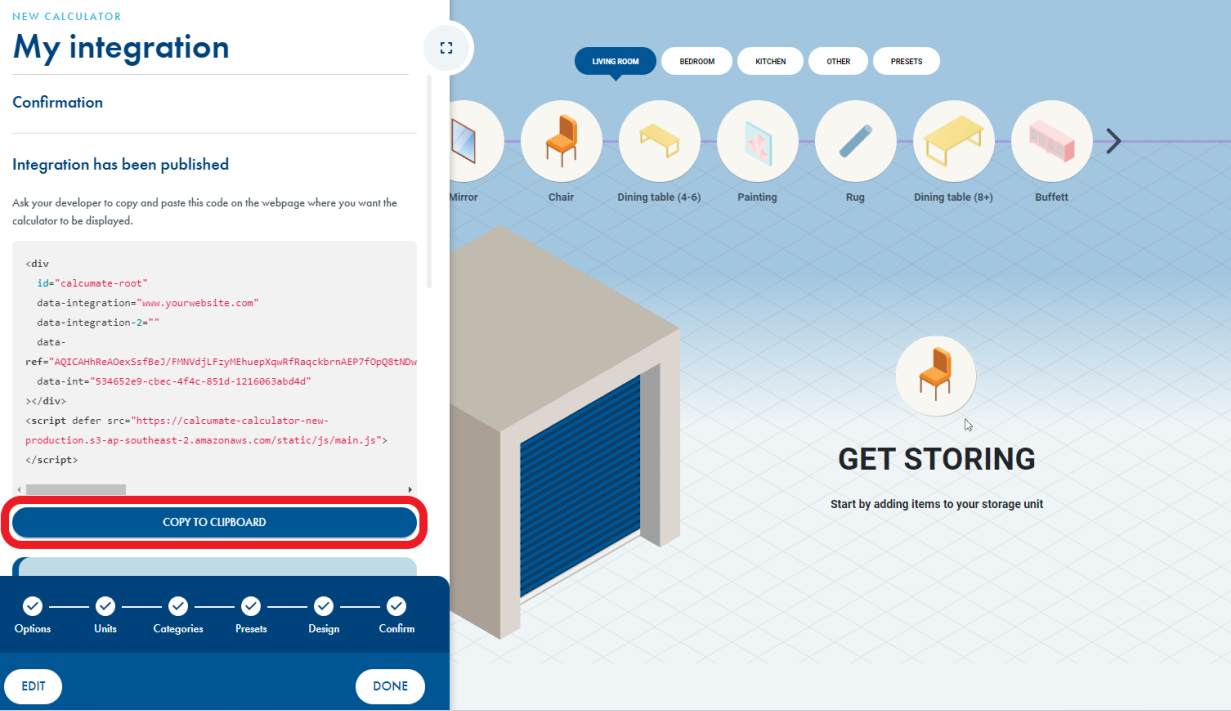
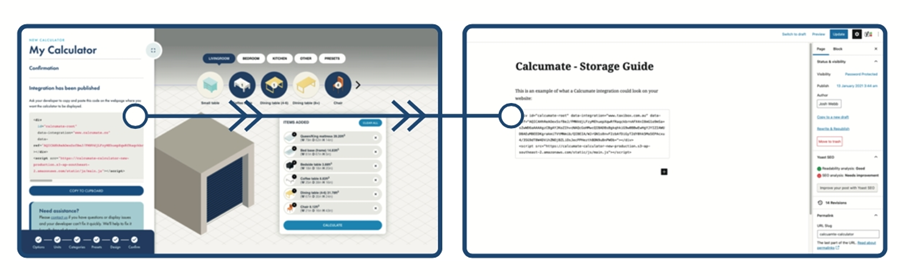
2. Press 'copy to clipboard' and paste the code onto any page of your websites domain (it can be added to multiple pages within the sames domain). \
\
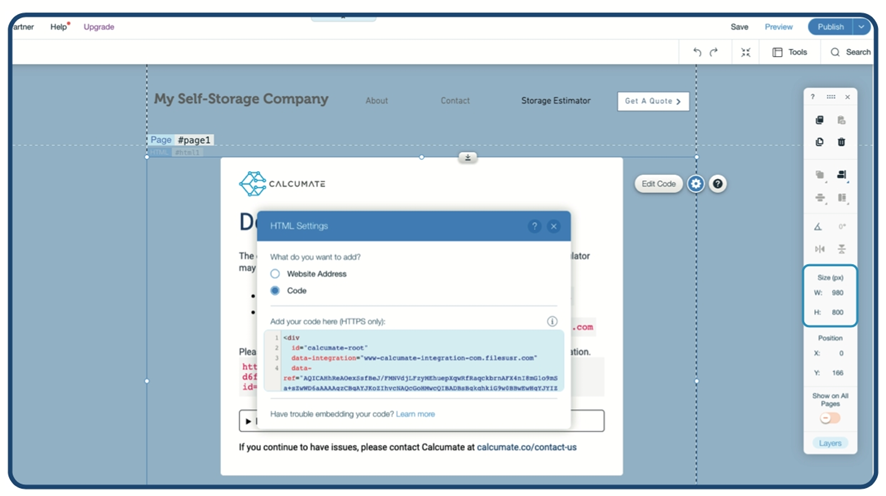
If you're using a website editor, you will want the 'custom html' or 'embed code' option. \
Alternatively, if you're not using a website editor, a developer should be able to simply paste this code to the designated page. \
\
**Note**: we recommend pasting this code directly from the 'copy to clipboard' to prevent the code reformatting.
3. Need to make changes to your integration? No problem, simply [login](https://calcumate.co/login) to your account and make any changes that you need. Your website will automatically saves and updates as you make the changes in your dashboard.
## Embedding with iframes
If you’re adding your integration through web editors like Wix or GoDaddy, then your Calcumate integration will likely be added inside an iframe. \
\
This shouldn’t impact the performance of either your website or your Calcumate integration, but you may need to manually set the height and width of the iframe in order for it to appear correctly on your website. \
\
Importantly, you’ll need to set the dimensions for both desktop and mobile devices.\
\
We recommend: \
Desktop: 980px x 800px\
Mobile: 350px x 850px
## Domain Mismatch Error
This error message appears when the domain set for your Calcumate integration doesn’t match the one your integration has been embedded onto. Commonly this is because of either a spelling mistake or because of the way our database reads your domain.
Either way, the good news is there’s a simple solution.
1. Copy the URL that our error message has recommended.
2. [Login](https://calcumate.co/login) to your Calcumate account and paste the URL in step 1 of the integration builder. The website URL in options 1 should match the domain you're pasting your code. \

3. Continue through the steps and re-publish your new integration code snippet.
4. Copy this new integration and use it to replace the existing code on your website.
5. Go to the right page and clear your cache, before completing a hard refresh of your browser